Internationalization (i18n) and localizing your AppGini app
Applies to AppGini 26.11 and above. For older versions, please refer to the Internationalization in AppGini versions older than 26.11 document.
AppGini applications are internationalization-ready, meaning you can localize your app to any language you want. Starting with AppGini 26.11, apps ship with multi-lingual support out of the box, including 64 built-in languages.
In this page, we'll discuss how to localize your AppGini app to a new language. We'll also discuss how
to localize table and field names, which are not included in the language.php file.
Localizing your app interface (AppGini 26.11 and above)
How multi-lingual support works
Starting with AppGini 26.11, you can set a default language in AppGini under the localization settings.
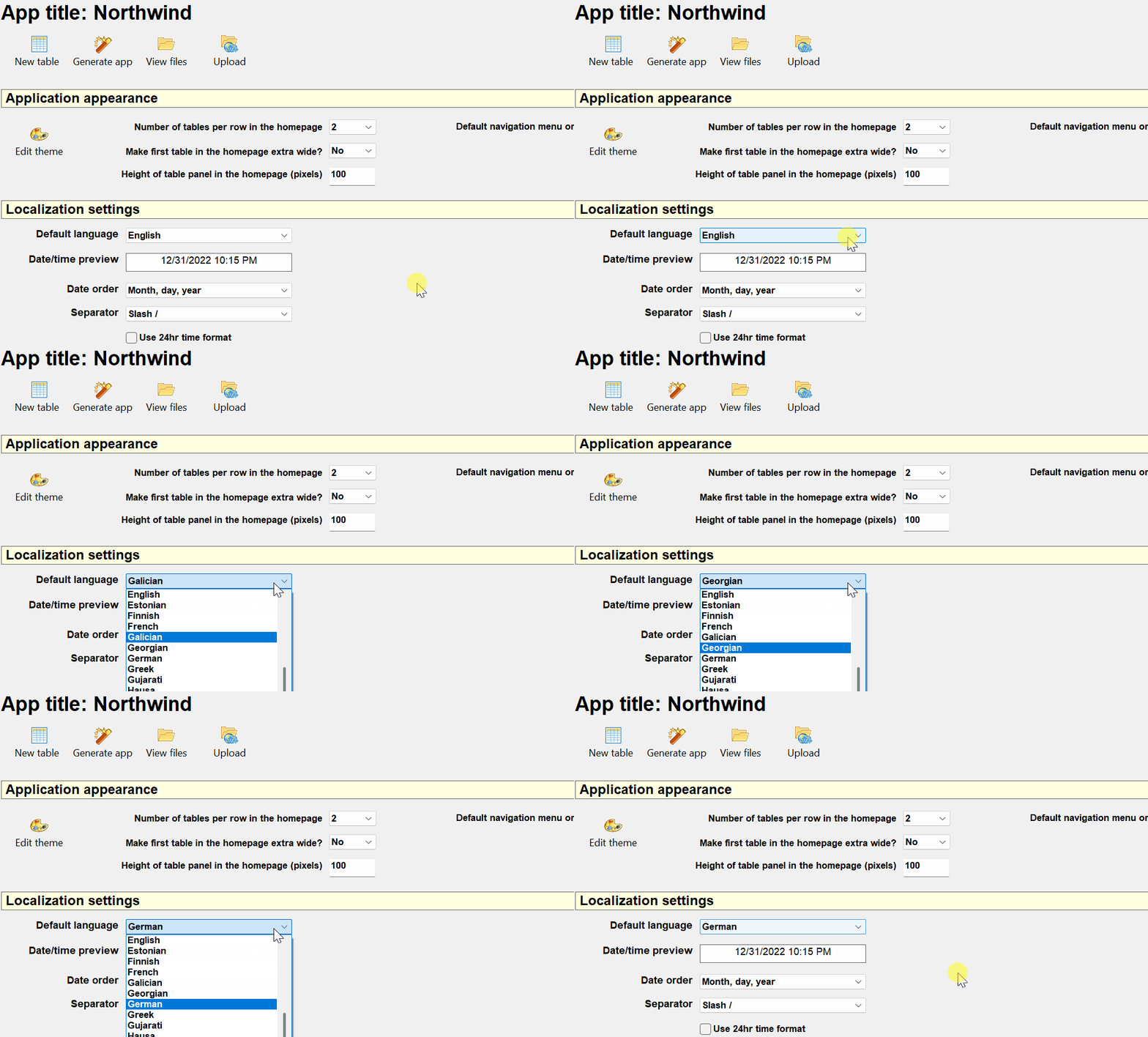
When you generate the app, this default language is stored in the generated definitions.php, under the DEFAULT_LANGUAGE constant,
and the app UI uses it by default.
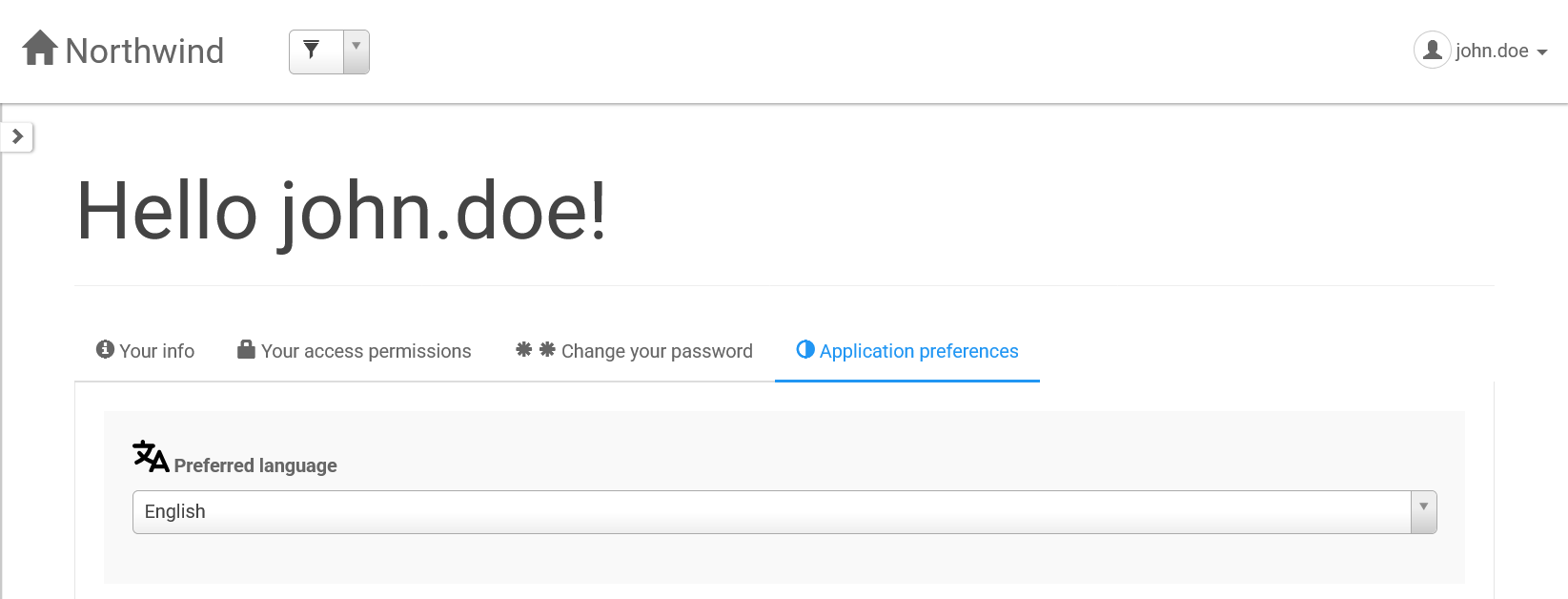
Each user can then choose their own UI language from their profile page under the Application preferences tab. This means every user can interact with the app in their preferred language, rather than forcing a single unified language for all users.
Language files layout
Under the hood, the English strings are stored in defaultLang.php. All other languages are stored in the language
directory, with one subdirectory per language code (for example, de, ar, and so on). Each language directory
contains a language.php file with the translated strings. The app loads the appropriate language file based on the user's language selection, and falls back to English if a string is not found in the selected language.
Here is a partial tree of the generated app showing the language files layout:
app/
├── definitions.php # defines the default language and other app-wide constants
├── defaultLang.php # contains the English strings
├── language/
│   ├── de/
│   │   └── language.php # contains the German strings
│   ├── ar/
│   │   └── language.php # contains the Arabic strings
│   └── ... # other languages
Translation tool (older versions)
The built-in translation tool was available in AppGini 22.11 and later, but it is no longer shipped starting with AppGini 26.11. If you are using 26.11 or above, the translation tool is not needed because the app includes the 64 built-in languages and per-user language selection.
Language fallback
If a string is not found in the language.php file, AppGini will fall back to the English string,
which is included in the generated defaultLang.php file.
Right to left (RTL) languages
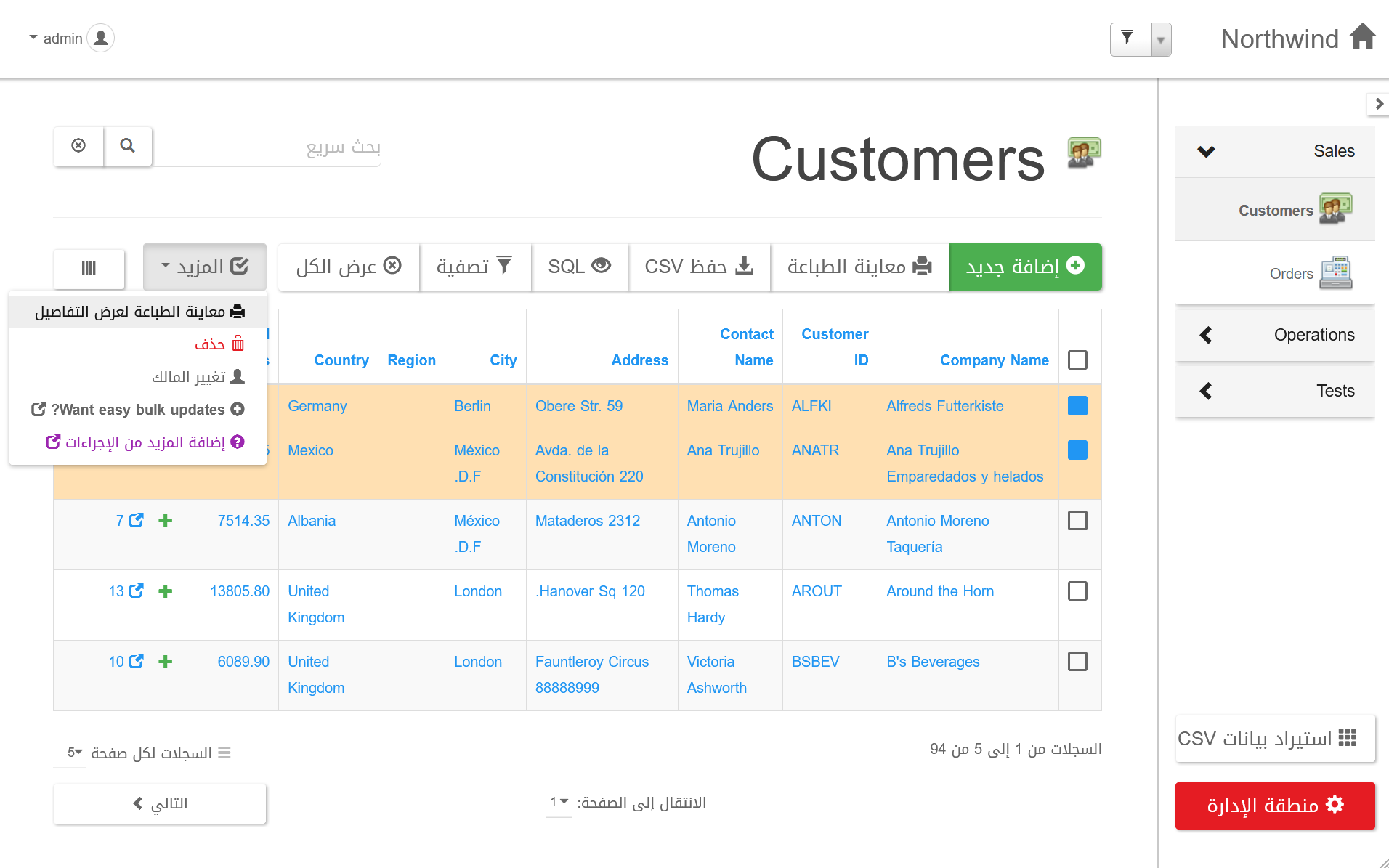
AppGini supports right-to-left (RTL) languages, such as Arabic and Hebrew. Starting with AppGini 26.11, RTL support is detected automatically based on the applied language, so there is no need to configure it inside AppGini.
Localizing table and field names
The language.php file contains strings used in the app interface, such as buttons, labels, and messages.
However, it does not contain table and field names. To localize these, you can open the AXP project file in AppGini,
click on the table or field you want to localize, and enter the localized name in the 'Caption' box.

Localizing the detail view (record editing form) title
By default, the title of the detail view (record editing form) is 'Detail view'. You can localize this title by opening the AXP project file in AppGini, clicking the table you want to localize, and entering the localized title in the 'Detail view title' box. See the screenshot below:

And here is the detail view of the orders table with the localized German title 'Bestelldetails':

Localizing the home page table group titles
AppGini allows you to group similar tables under a common title in the home page. This makes it easier for users to navigate your app. You can use localized titles for these groups. To set the table group title:
- Open the AXP project file in AppGini.
- Click the table you want to localize.
- Click the button titled 'Table group' to open the 'Table groups' dialog.
- Click the table group you want to localize.
- Press
F2or the 'Rename' button to rename the group.

Here is the home page of the app with the table group title localized to Greek:

Note: After renaming the table group to some non-Latin characters, you might see question marks or other unexpected characters in the group title in AppGini. This is a known issue in AppGini and does not affect the actual display of the group title in the app.
Localizing the application title
The application title is displayed in the browser's title bar and in the top-left corner of the app.
You can set it to a localized title by opening the AXP project file in AppGini, clicking the topmost node
in the project browser tree at the left, then pressing F2 to rename the application. Underscores in the application name
will be replaced with spaces in the displayed title.
Non-Latin characters in the application title would cause an error message and won't be accepted by AppGini.
As a workaround, you can set the application title to a Latin name, then, after generating the app, you can
add the following code to hooks/__bootstrap.php to change the application title to a localized title:
Replace the Greek text in the appTitle variable with your localized application title. Here is the result of the above code:
Localizing the titles of child tables
When you have a parent table with child tables, for example, a parent table shippers with a child table orders,
you can configure the shippers table to display the child orders as a tab in the detail view as shown below:

You can also display the count of child orders as a column in the parent shippers table as shown below:

For both of the above screenshots, the title of the child orders table is set as 'Orders via shipper'. We can localize this title
by opening the AXP project file in AppGini, clicking the parent table (in this case, shippers), then clicking the Parent/children settings
button to open the Parent/children settings dialog.

Click the desired child table from the grid at the left if not already selected, then enter the localized title in the Tab/Column title box.
Note: If the title contains non-Latin characters, you might see question marks or other unexpected characters in the title in the grid. This is a known issue in AppGini and does not affect the actual display of the title in the app.
Programmatically accessing localized strings
You can access localized strings in your hooks using the PHP variable $Translation. This is an associative array
where the keys are English strings/short codes and the values are the localized strings. This variable is defined
in language.php and can be made available inside any PHP hook function by including the following line at the top of the function:
You can then access any localized string by its English string/short code as follows:
You can also access localized strings using the AppGini.Translate._map JavaScript object. For example: