Two-Factor Authentication (2FA)
This feature is available in AppGini version 26.11 and later.
Two-Factor Authentication (2FA) adds an extra layer of security to your AppGini application by requiring users to provide a second form of verification in addition to their password. This implementation uses email-based OTPs (One-Time Passwords) to verify the user's identity during login. This minimizes friction for users while enhancing security, as they can receive the OTP directly in their email without needing to set up a separate authentication app.
How does it work?
When a user from a protected group logs in, after entering their username and password, they will receive a One-Time Password (OTP) via email. They must enter this OTP on a verification page to complete the login process.
Enabling 2FA
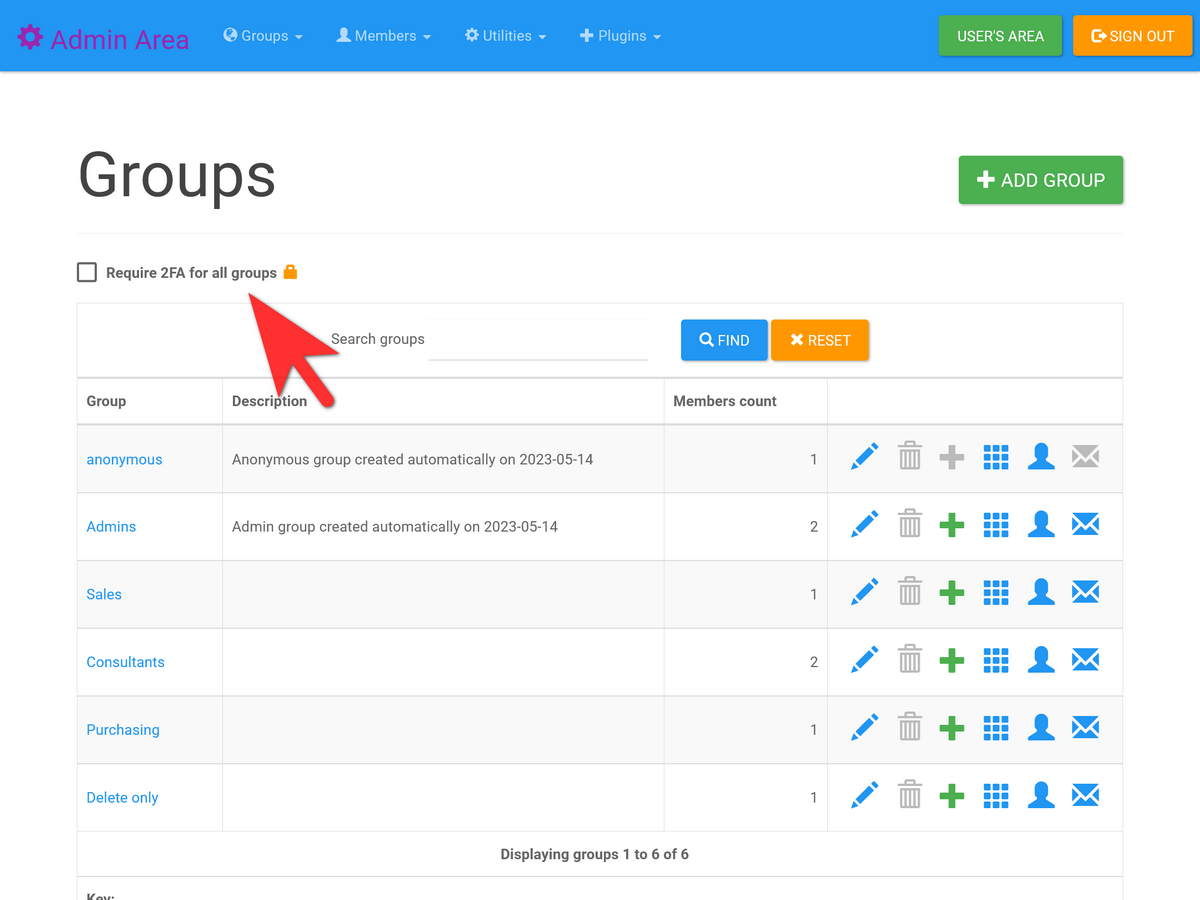
You can enable or disable 2FA for all existing groups from the "View Groups" page (Admin Area > Groups menu > View Groups) by checking the "Require 2FA for all groups" checkbox at the top of the page. This setting is instantly applied to all existing groups (by issuing an ajax request to admin/ajax-toggle-2fa.php).
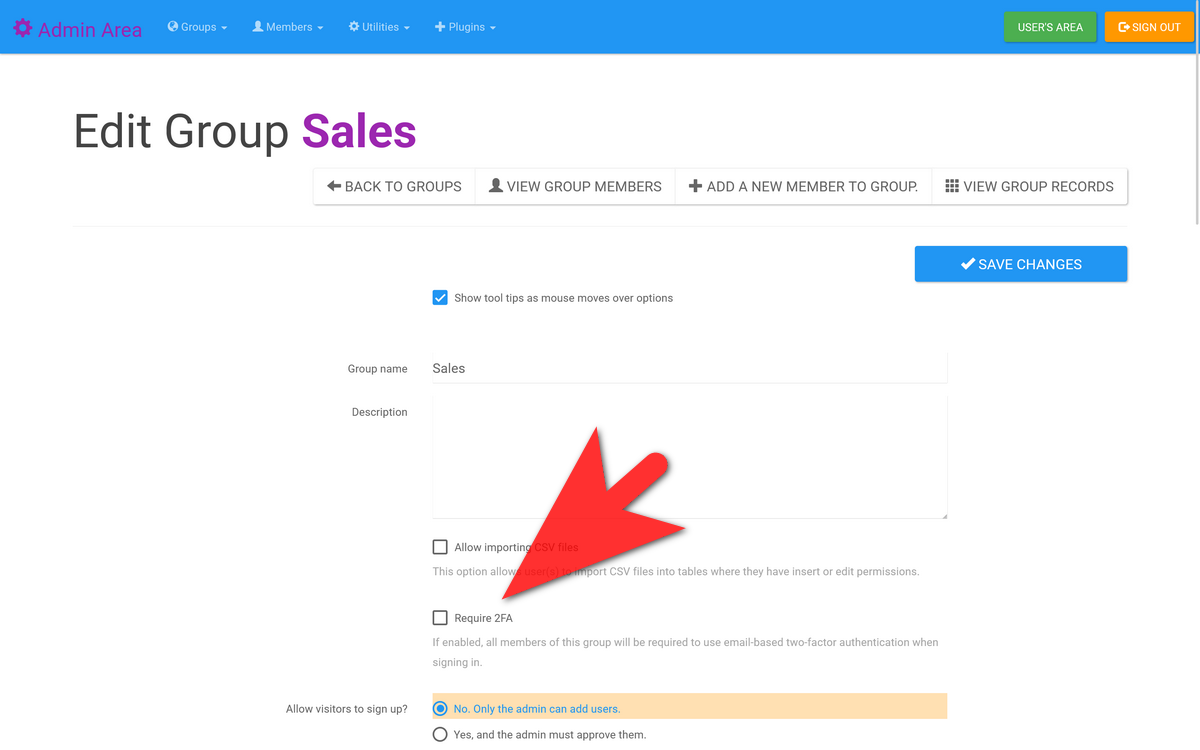
You can also enable or disable 2FA for specific groups by clicking the group name in the "View Groups" page and toggling the "Require 2FA" option, then saving the changes.
Emergency Bypass
If you encounter issues with email delivery or need to bypass 2FA for any reason, you can disable it globally by creating an empty file in the admin folder named .disable_2fa. This will disable 2FA for all users until the file is removed.
Technical workflow
- User enters username and password on the login page.
- If the credentials are valid, a login session is created.
- If the user belongs to a group that requires 2FA, and the emergency bypass file
admin/.disable_2fadoes not exist, the session is instantly destroyed. - A One-Time Password (OTP) is generated, stored in the
membership_2fa_requeststable, and emailed to the user. -
The user is redirected to the 2FA verification page (
2fa.php), where they must enter the OTP.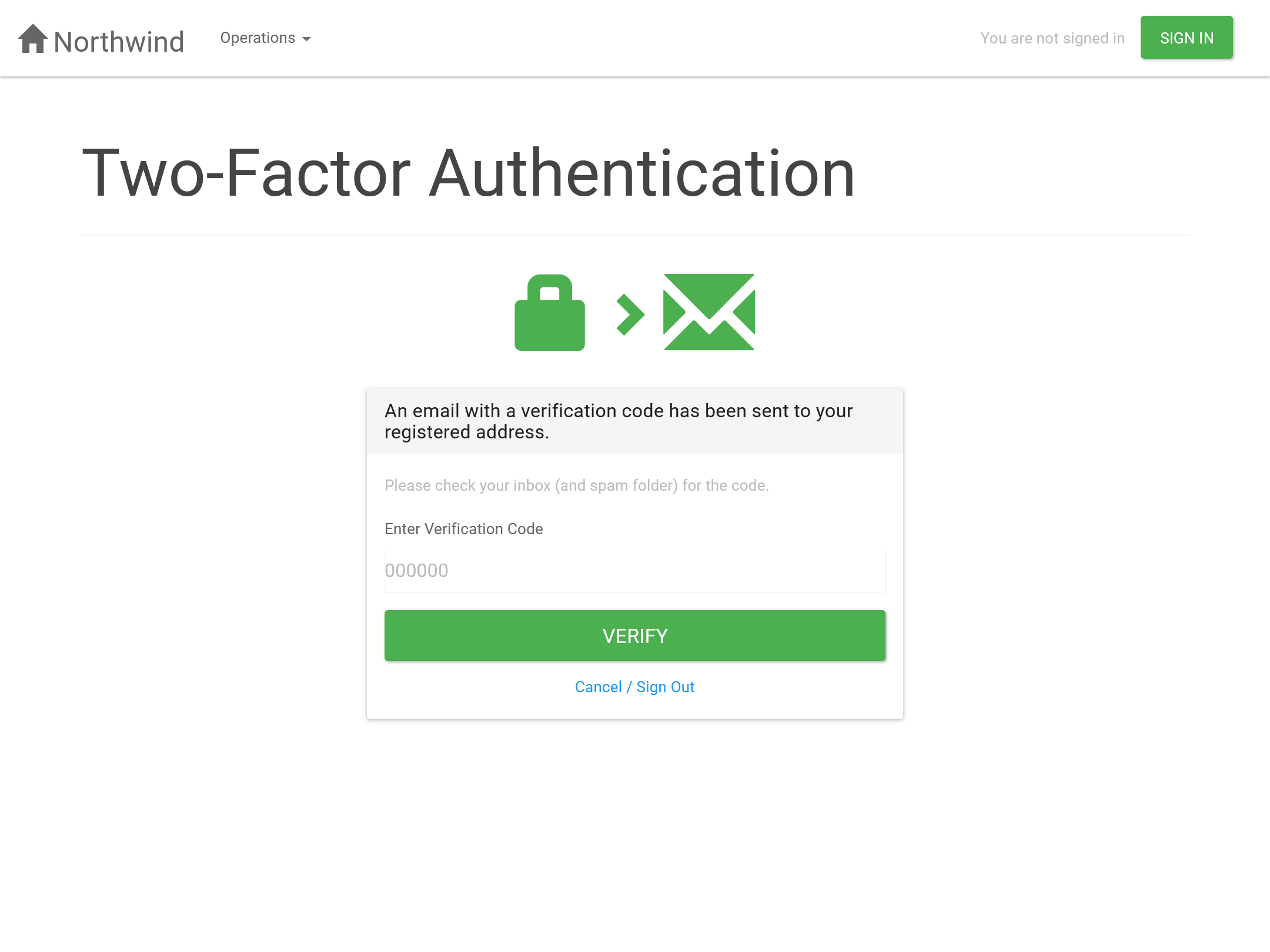
-
If the OTP is valid and not expired, a new login session is created, and the user is logged in.
OTP Expiry
By default, OTPs expire after 15 minutes. You can change this duration by defining the OTP_EXPIRY_MINUTES constant in the hooks/__bootstrap.php file. The value must be between 1 and 30 minutes.
Please note that reducing the expiry time, while possibly enhancing security, may degrade user experience since the user still has to sign in to their email, find the OTP, and return to the application within the specified time frame. Emails might not be delivered instantly due to various factors, so we don't recommend setting the expiry time to less than 5 minutes.
As an example, to set the OTP expiry time to 10 minutes, add the following line to hooks/__bootstrap.php:
OTP Length
By default, OTPs are 6 digits long. You can change the length by defining the OTP_LENGTH constant in the hooks/__bootstrap.php file. The length must be between 4 and 10 digits. For example, to set the OTP length to 8 digits, add the following line to hooks/__bootstrap.php:
Email Configuration
The plugin uses the application's built-in email functionality. Ensure your server can send emails or that you have configured SMTP in the Admin Area > Utilities > Admin Settings > Mail settings.
Email Content Customization
The email subject and message are set via the following language strings in the language files:
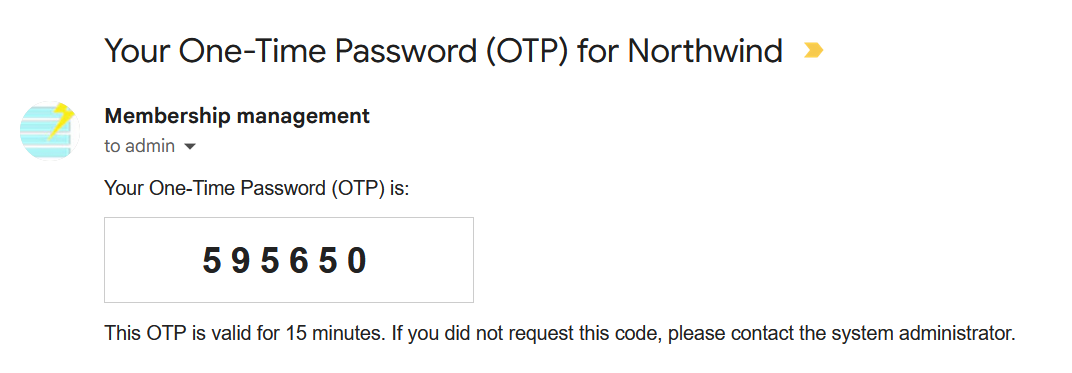
otp_email_subject: The subject of the OTP email. The english version is "Your One-Time Password (OTP) for {APP_TITLE}".-
otp_email_message: The body of the OTP email. The english version looks like this:
The language of the OTP email is the default language of the application that you set in the AppGini project properties area.under Localization settings.
The styling of the OTP in the email is determined by the OTP_EMAIL_CSS constant defined in definitions.php. You can override it by defining your own CSS in the hooks/__bootstrap.php file. For example:
define('OTP_EMAIL_CSS', '
    font-size: 24px;
    font-weight: bold;
    margin: 10px 0;
    border: 1px solid #ccc;
    padding: 10px;
    max-width: 225px;
    text-align: center;
    letter-spacing: 6px;
');
Preserving 'Remember Me' Functionality
If the user checks the "Remember Me" option during login, this is stored in the membership_2fa_requests table along with the OTP. Upon successful OTP verification, the user will be remembered on subsequent logins as per the original "Remember Me" functionality.