< Back to
working with projects
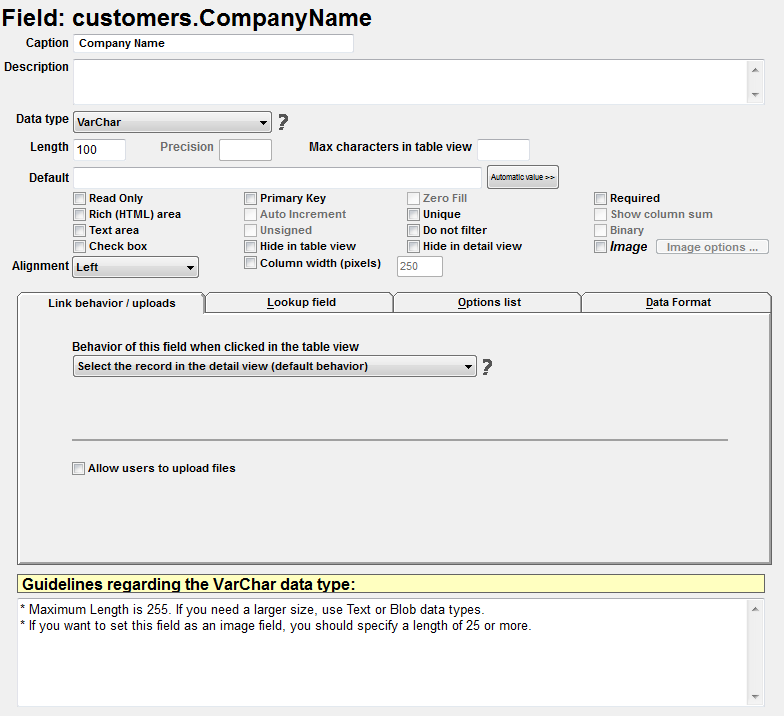
Field properties > Field caption
The field caption is the title of the field as it will appear in the pages of the generated PHP application.
back to map
Field properties > Description
If you provide a description for the field, users of the generated application will see a help icon beside the field in the detail view. When they click that icon, the description you provide here will pop up.
back to map
Field properties > Data type
Specifies the kind of data values allowed in the field. Read the data type guidelines at the bottom of the properties window to learn more about what limitations each data type imposes on the field.
back to map
Field properties > Precision
This property works with decimal data types only (e.g. Float, Double and Decimal). It specifies how many digits to display after the decimal point.
back to map
Field properties > Length
Specifies the maximum size of data that can be stored in this field. The way Length property works depends on the data type you choose for the field. Please read the data type guidelines displayed at the bottom of the Properties window for more information.
back to map
Field properties > Max characters in table view
Applicable for textual data types only. Specifies the number of characters to display in the table view for that field. If zero or empty, the entire field value is displayed.
This is very useful when you have a long field and you don't want to display all of its contents on the table view to prevent the table view from becoming too wide. Thus you can set it to display just the first 40 characters for example. When users select the record, the full field contents will be displayed in the detail view.
back to map
Field properties > Default
If you specify a default value, it will be placed in any records that the user creates while leaving this field empty (if the user does want an empty field, she can delete the default value after the record has been added and then update the record).
If you click the 'Automatic Value' button at the right of the 'Default' box, you can select an automatic value to be inserted into the field when the record is created or changed. This works only if the field is set as read-only.
back to map
Field properties > Read Only
If checked, this field will be displayed in the detail view but not editable.
back to map
Field properties > Rich (HTML) area
If checked, this field will be displayed as a rich area in the detail view. A rich area provides advanced formatting features not available in a normal text area.
back to map
Field properties > Text area
If checked, this field will be displayed as a text area in the detail view.
back to map
Field properties > Check box
If you check this property, the field will be displayed as a check box, where users can either check or uncheck it.
back to map
Field properties > Primary key
If you check this option, the current field will be the primary key of the current table.
Every table needs to have a primary key field in order to uniquely identify records of the table.
back to map
Field properties > Auto increment
This property works with integer data types only. It tells the field to act like an automatic counter that is incremented every time the user adds new records to the table. You can only have one Auto Increment field per table.
back to map
Field properties > Unsigned
This property works for numerical data types only. If you check it, the field will not accept negative data values.
back to map
Field properties > Hide in table view
If checked, the current field is not displayed in the table view. This may be useful if you want to hide some fields or to decrease the width of tables.
back to map
Field properties > Column width (pixels)
Specifies the width in pixels of the column that will display data from this field in the table view.
back to map
Field properties > Zero fill
Check this property to left-pad numeric data types with zeros when they are displayed.
back to map
Field properties > Unique
The data values in this field cannot be repeated if you check this property. It's a bit like the Primary key property except that it doesn't tell the field to reject null (empty) values.
back to map
Field properties > Do not filter
If checked, the current field is not displayed in the filters page. Thus, users will not be able to use this field to filter data.
back to map
Field properties > Hide in detail view
If checked, this field will not be displayed in the detail view.
back to map
Field properties > Required
If you check this property, users must provide a value for this field before submitting the form.
back to map
Field properties > Show column sum
This option is enabled only for numeric fields. If you check this option, the generated table view will include a calculated sum of the values stored in this field for all records.
If a filter is applied to the table view, the sum will be calculated only for filtered records rather than all records.
back to map
Field properties > Binary
This property works only with Char and VarChar data types. It forces the field to behave like a binary value rather than the default text behavior. For example, the list (a,G,x,E,A,g) is sorted as (a,A,E,g,G,x) if it is treated as text values, and (A,E,G,a,g,x) if it is treated as binary values.
back to map
Image options
If this option is checked, this field will be displayed as an image. Click the 'Image options' button to specify how the image would be displayed.
The image will be stored on the server, and only the image file name will be stored in this field. So, the field data type should be char or varchar of length 40. By default, images are stored in the 'images' directory inside the directory containing the uploaded scripts.
back to map
Alignment
back to map
Link behavior/uploads
back to map
Lookup field
back to map
Options list
back to map
Data format
back to map
Guidelines regarding the Varchar data type
back to map